Build and Deploy a “Hello World” Web App with Streamlit Community Cloud + GitHub
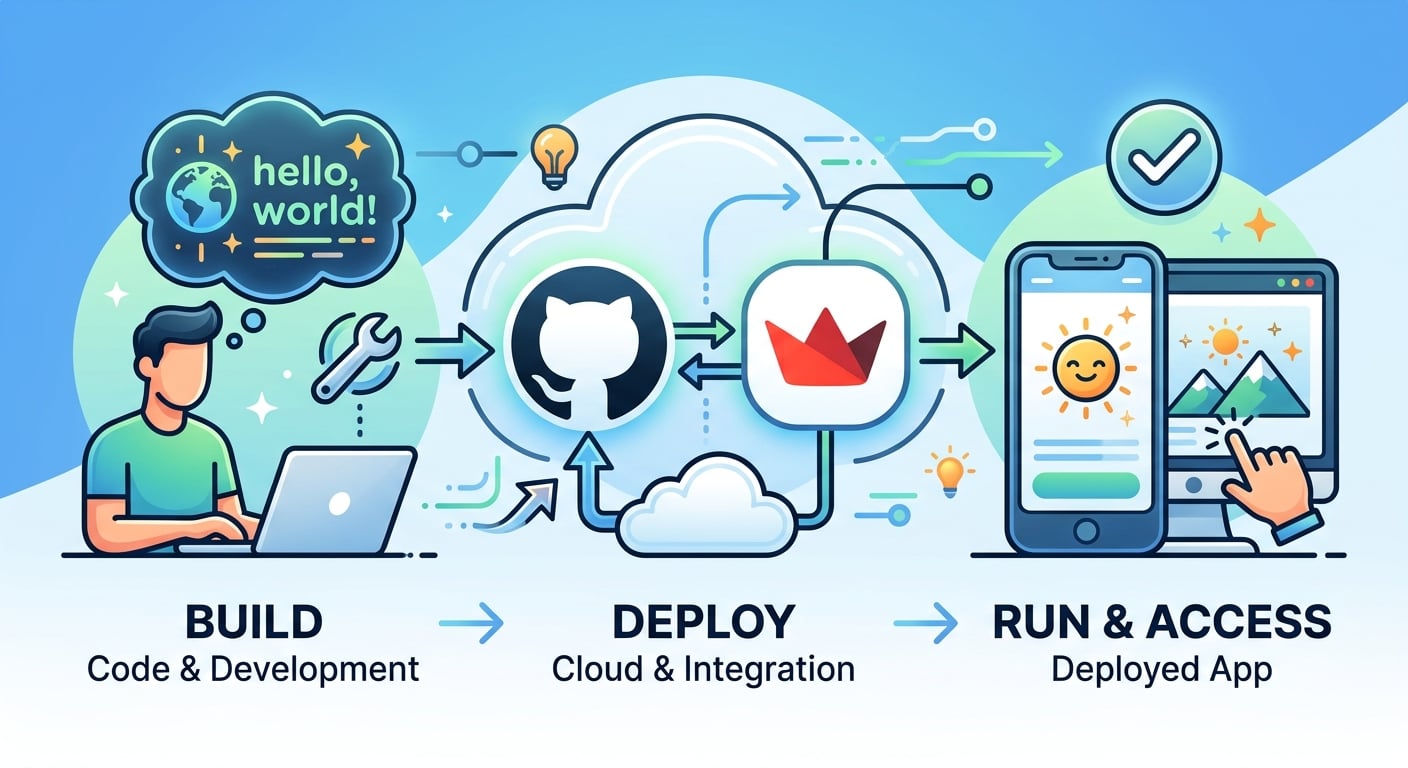
In this mini-guide, you’ll build a simple Python web app, upload your code to GitHub, and deploy it for free using Streamlit Community Cloud. By the end, you’ll have a live web app with a shareable URL.
Tools you’ll use
- Streamlit: Builds interactive web apps using Python.
- GitHub: Stores and manages your application code in a repository.
- Streamlit Community Cloud: Deploys your GitHub repository as a live web app.
1. Create a GitHub Repository
- Go to GitHub and sign in or create an account.
- Click the + icon in the top-right corner and select New repository.
- Name your repository hello-streamlit.
- Set the repository visibility to Public.
- Click Create repository.
2. Add Your App Code (app.py)
- On your repository page, click creating a new file (in the Quick setup section).
- Name the file app.py
- Paste the following Python code:
import streamlit as st
st.title("Hello, World!")
Click Commit changes to save the file to your repository.
Understanding the code
import streamlittells Python to load the Streamlit package.as stgives that package the shorter namest.st.title("Hello, World!")displays a title in your web app.
3. Add a Dependencies File (requirements.txt)
A requirements.txt file lists the Python packages your application needs. It helps Streamlit install the required dependencies during deployment.
- In your repository, click Add file → Create new file.
- Name the file requirements.txt
- Add the following line:
streamlit
Click Commit changes.
Dependencies are the packages your application needs to work.
4. Deploy on Streamlit Community Cloud
- Go to Streamlit Community Cloud and sign in with your GitHub account.
- Click Create app.
- Select Deploy a public app from GitHub.
- Configure your deployment settings:
- Repository: Select your repository, such as your username/hello-streamlit.
- Branch: main (or the branch containing your files).
- Main file path: app.py
Click Deploy.
Streamlit will build and launch your application. Once deployment is complete, you’ll receive a live URL that you can open in your browser and share with others.
Congratulations! You’ve built and deployed your first Streamlit web app using Python and GitHub.
This mini-guide was originally published on PDF Python Hub, where you can find more in-depth Python resources for working with PDFs.
About the author
- PDF Python Hub is dedicated to teaching PDF programming, automation, and engineering with Python through practical, project-based courses. Whether you're a complete beginner or an experienced Python developer, the goal is to help you build the skills needed to work with PDF documents confidently—from reading and extracting data to building enterprise document processing and AI-powered workflows. What You'll Learn The curriculum covers every stage of PDF processing, including: -PDF fundamentals -Document extraction -PDF manipulation -Forms, tables, and images -OCR and scanned documents -Security and redaction -Enterprise automation -AI-powered document processing How You'll Learn Every course is designed to be: -Beginner-friendly with clear, step-by-step explanations -Focused on practical, real-world applications -Built around hands-on projects and assessments -Structured as a complete learning path from beginner to expert Our Mission Our mission is simple: To make PDF processing with Python accessible, practical, and enjoyable by teaching real skills that can be applied to everyday automation tasks and professional software development. Whether you're learning for your career, your business, or your own projects, you'll gain the knowledge and confidence to build powerful PDF automation solutions with Python. Learn more: https://payhip.com/PDFPythonHub/blog/news
Comments
Join the discussionNo comments yet. Be the first to comment.