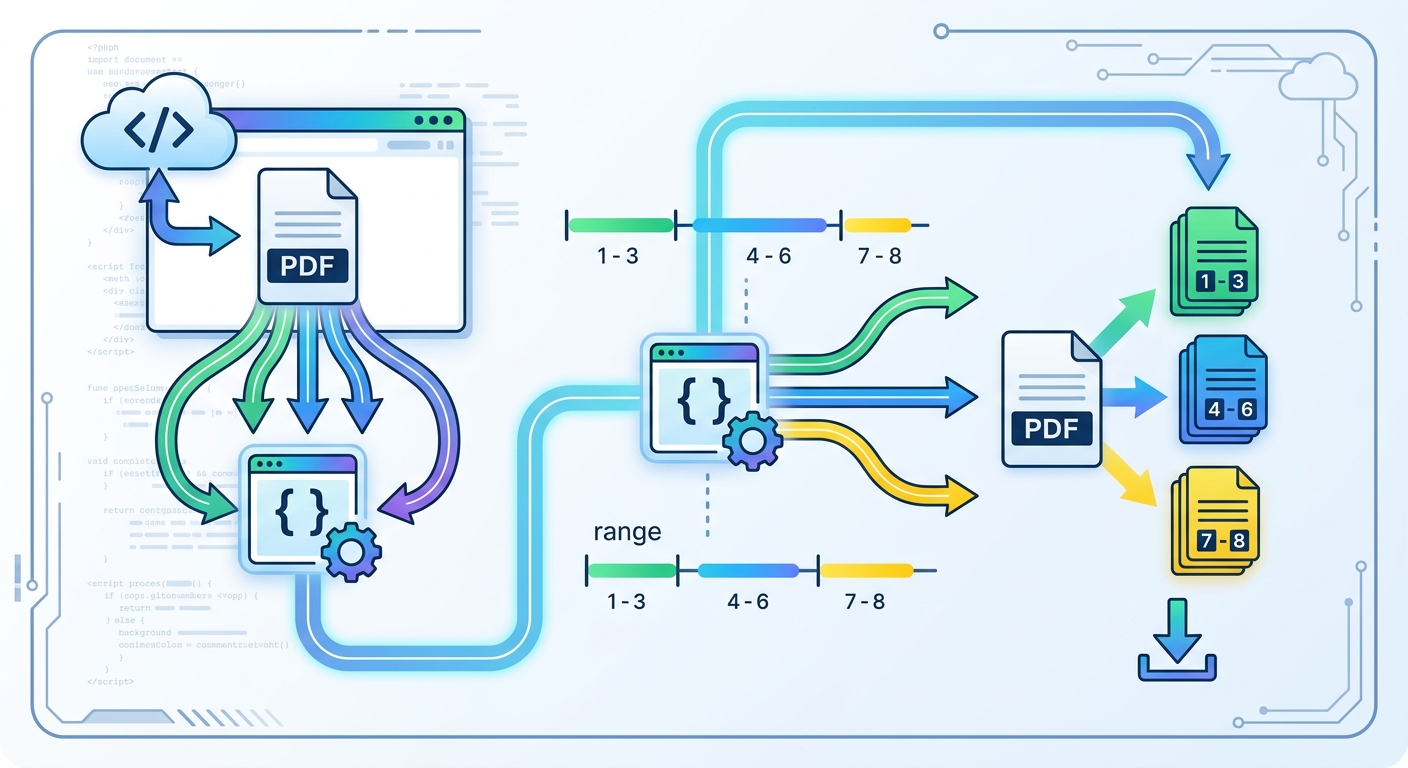
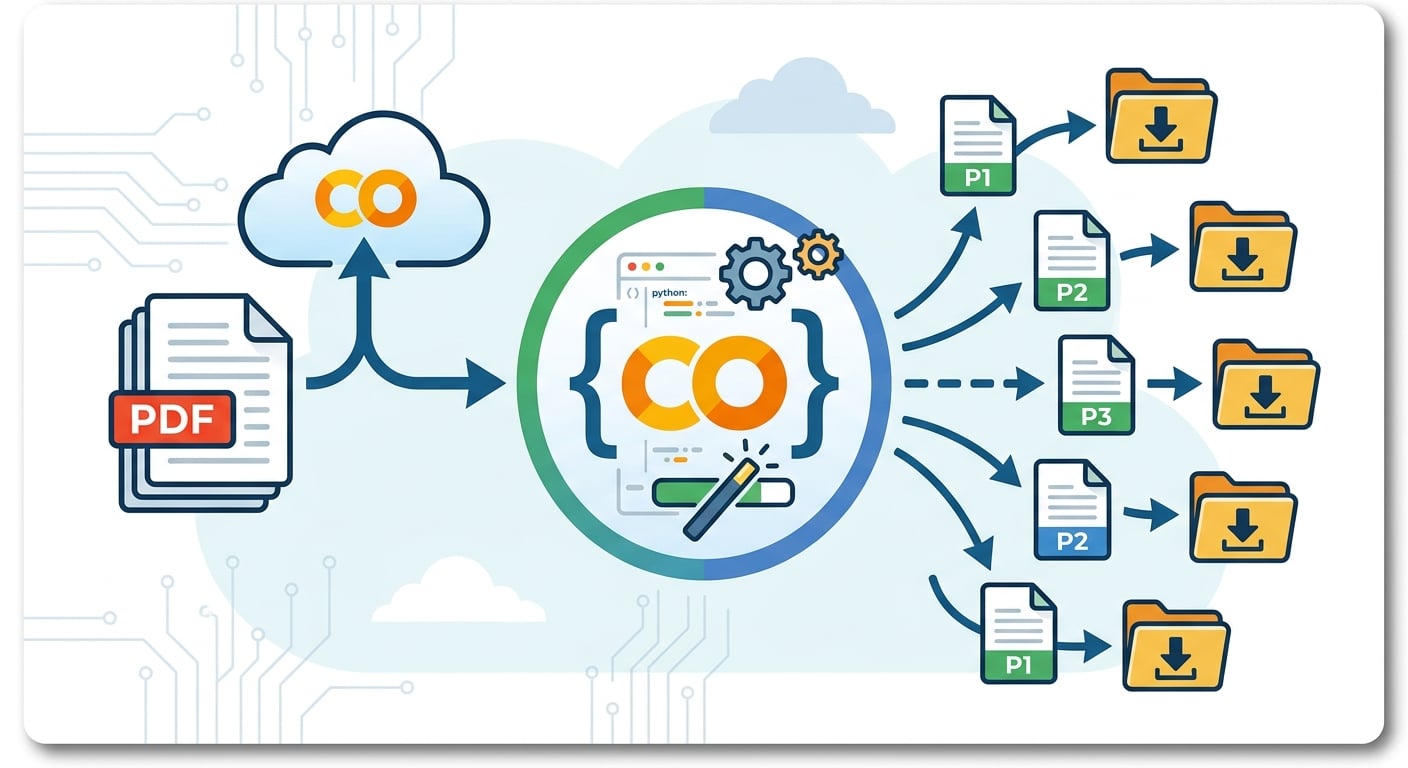
How to Split a PDF by Custom Page Selections in Google Colab
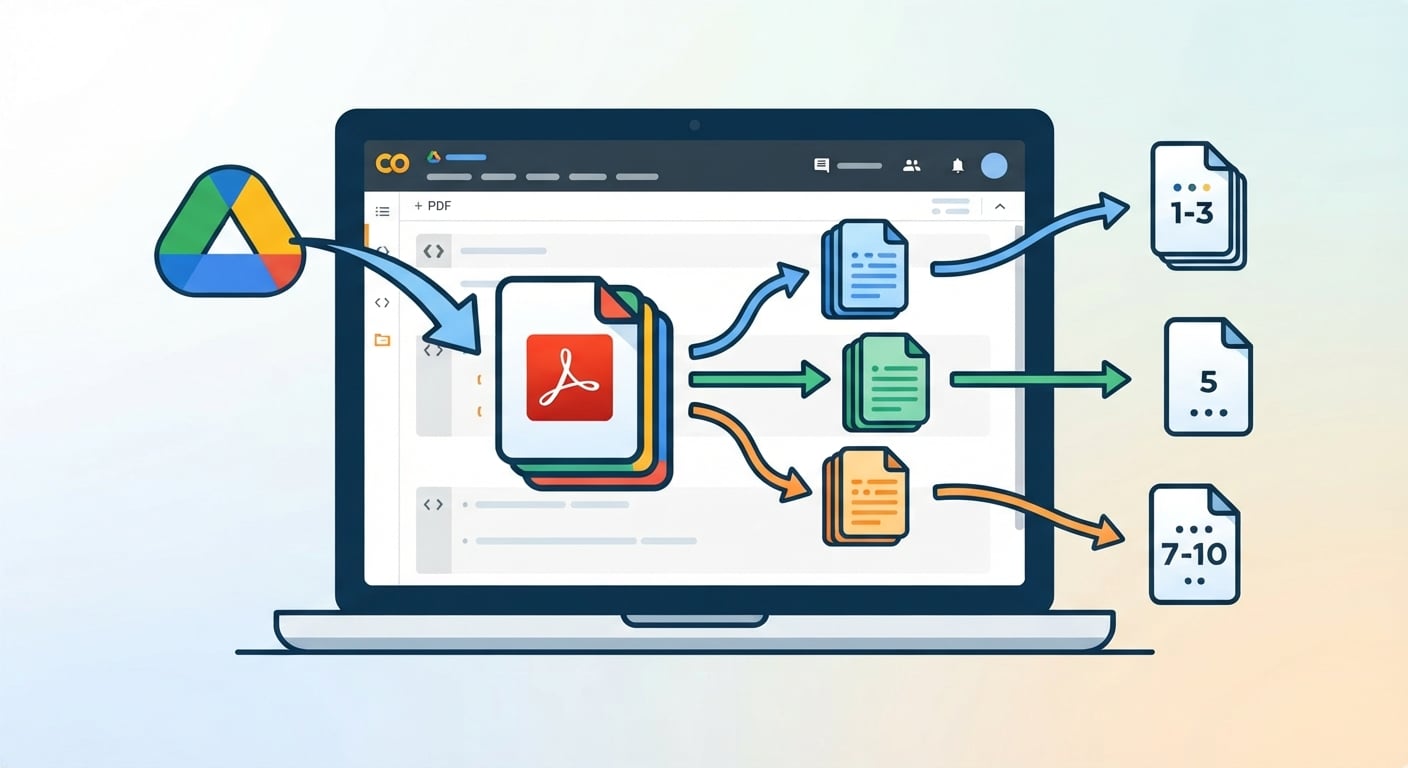
With Python, PyMuPDF, and Google Colab, you can easily extract specific pages from a PDF and save them as a new PDF. This is useful when you need to extract individual chapters, sections, or selected pages.
1. Install PyMuPDF
Run this cell first:
%pip install -q -U pymupdf
2. Upload your PDF
Import Google Colab's file upload tool and select your PDF:
from google.colab import files
uploaded = files.upload()

if not uploaded:
  raise ValueError("No PDF was uploaded.")

input_pdf = next(iter(uploaded))
3. Open the PDF
Import PyMuPDF and open the uploaded file:
import pymupdf
doc = pymupdf.open(input_pdf)
Note: PyMuPDF uses zero-based page indexing.
Page 1 = index 0
Page 2 = index 1
Page 3 = index 2
4. Select the pages to extract
Specify the pages you want to extract.
For example, this selects pages 1, 3, and 5:
pages = [0, 2, 4]
5. Create a new PDF
Create a new PDF and copy the selected pages into it:
output = pymupdf.open()

for page_number in pages:
  output.insert_pdf(
      doc,
      from_page=page_number,
      to_page=page_number

)

output.save("selected_pages.pdf")

output.close()

doc.close()
6. Download the new PDF
Once the PDF has been created, download it to your computer:
files.download("selected_pages.pdf")
Complete Example
%pip install -q -U pymupdf

from google.colab import files
uploaded = files.upload()

if not uploaded:
  raise ValueError("No PDF was uploaded.")

input_pdf = next(iter(uploaded))

import pymupdf
doc = pymupdf.open(input_pdf)

pages = [0, 2, 4]

output = pymupdf.open()

for page_number in pages:
  output.insert_pdf(
      doc,
      from_page=page_number,
      to_page=page_number

)

output.save("selected_pages.pdf")

output.close()

doc.close()

files.download("selected_pages.pdf")
Open the notebook
Open the Google Colab notebook for this PDF mini-guide and run the code as you follow along.
This mini-guide was originally published on PDF Python Hub, where you can find more in-depth Python resources for working with PDFs.
More PDF Python Resources
Want to learn how to Split a PDF into Separate PDF Pages in Google Colab?
Check out this mini-guide: How to Split a PDF into Separate PDF Pages in Google Colab.